Two rails: cryptocurrency (NOWPayments, prepaid Pro/Elite) and
card / PayPal (Selar). Day Pass and Trial are Selar prepaid
one-time. Pro and Elite card is monthly.
Screens below match the live processors — follow them in order.
Crypto is prepaid via NOWPayments (Pro and Elite). Card is Selar:
Day Pass and Trial are one-time; Pro and Elite are a monthly subscription.
Redirect does not grant access. Wrong network or wrong crypto amount can
delay or forfeit the deposit. Use the same email as your WDI login.
Step 1 of 12 · Shared
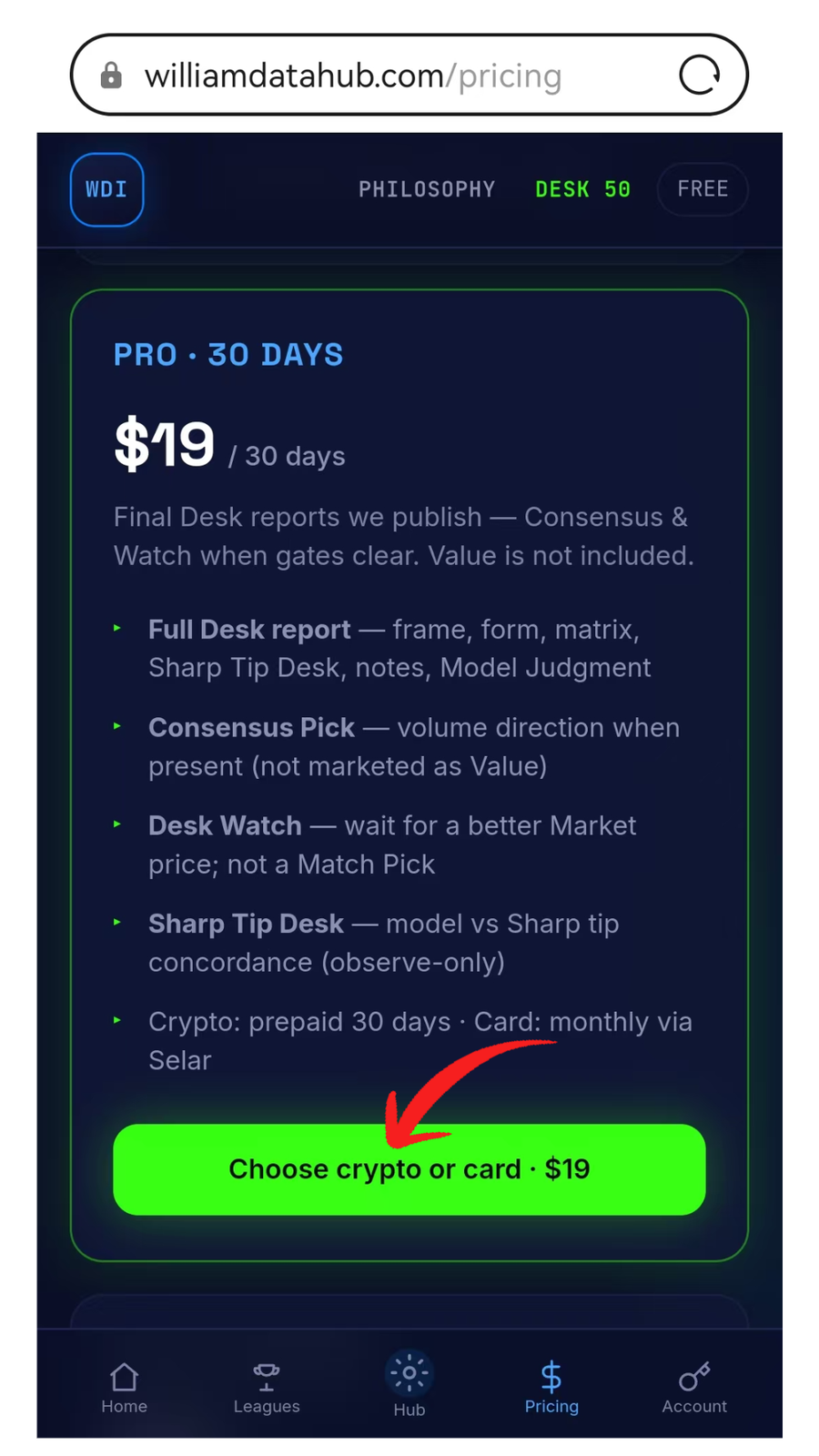
Start checkout
On Pricing, open the plan you want (Pro shown)
and tap Choose crypto or card. Day Pass and Trial instead
show Pay with card and skip the method chooser.
Sign in first, with the same email you will use at checkout.
Cryptocurrency
Prepaid NOWPayments invoice · no auto-renewal.
Step 2 of 12 · Cryptocurrency
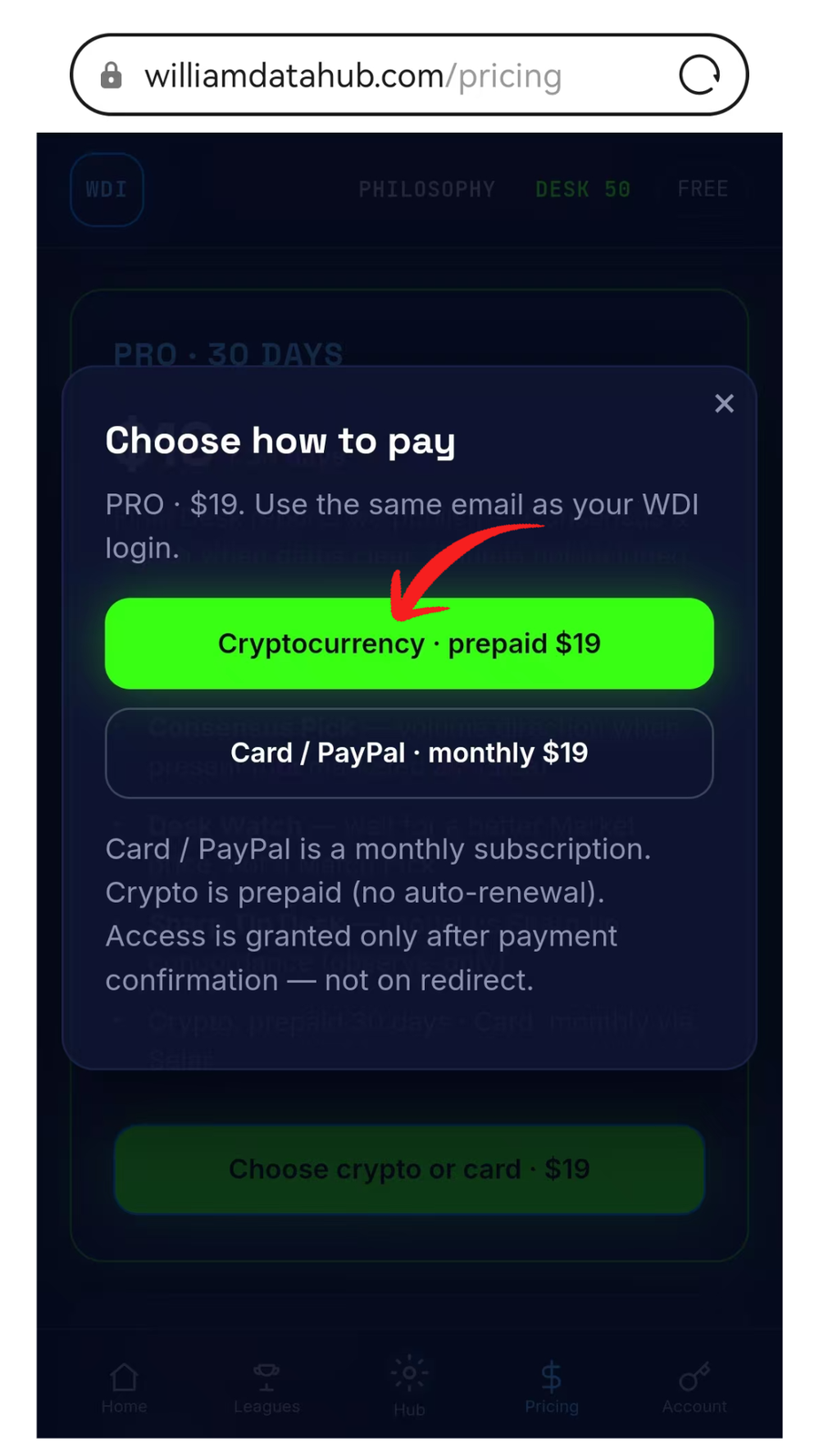
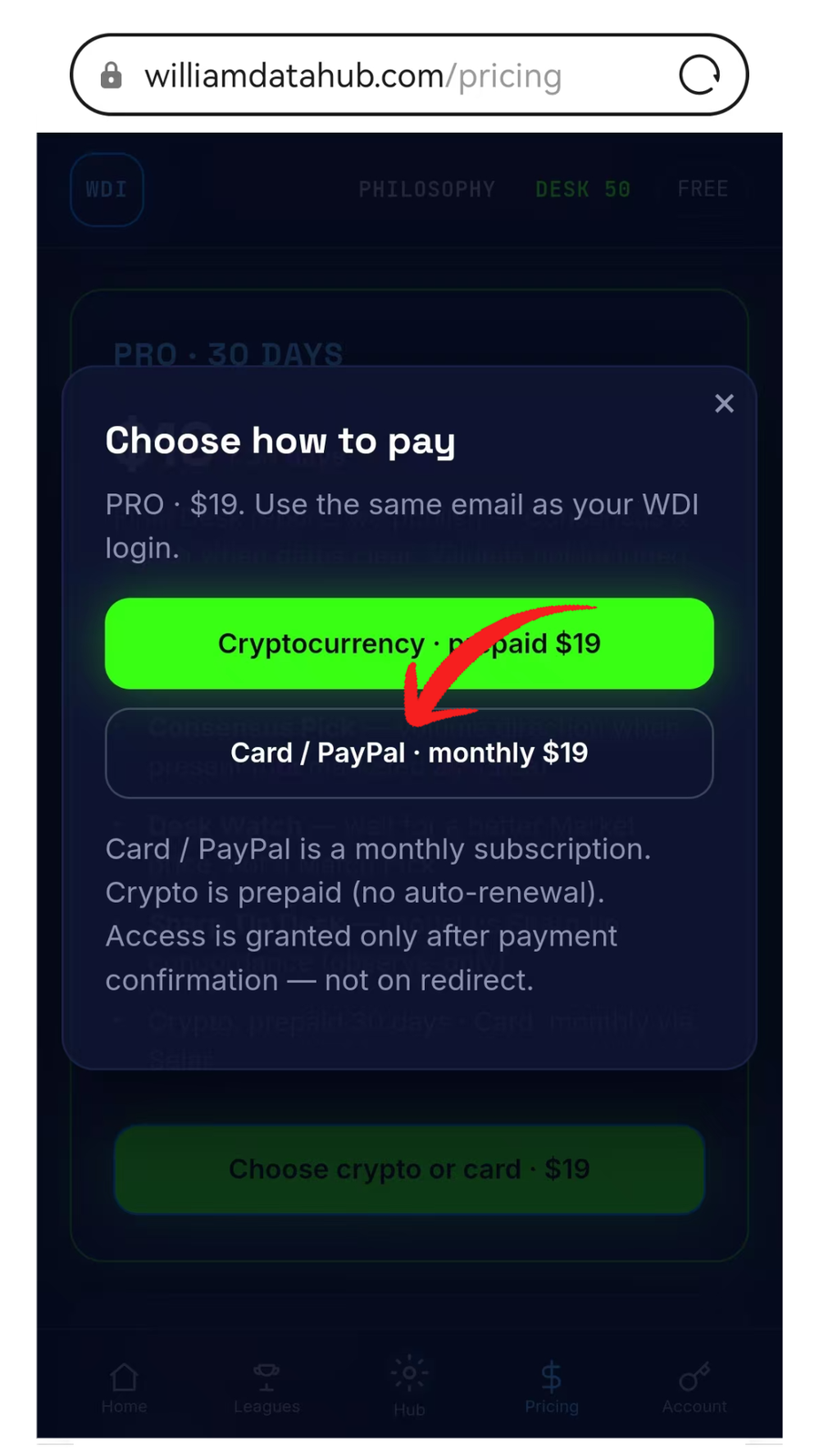
Pay with cryptocurrency
In Choose how to pay, tap
Cryptocurrency · prepaid. This opens a one-time NOWPayments
invoice. Access unlocks after on-chain confirmation, not when
the invoice page appears.
Step 3 of 12 · Cryptocurrency
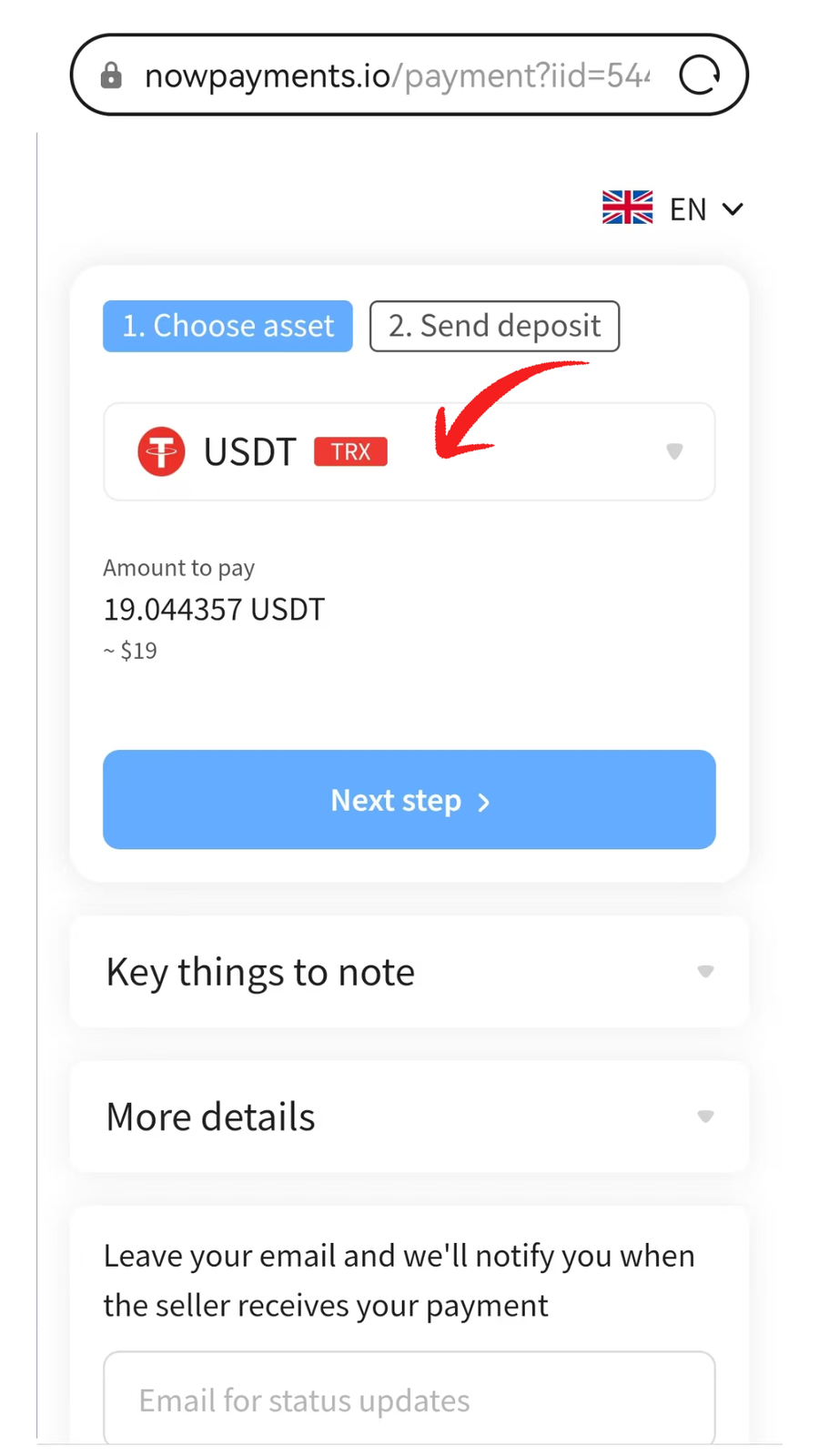
Default asset: USDT on TRX
The invoice often preselects USDT on the
TRX (TRC-20) network. Confirm the red TRX
badge before Next step. Sending USDT on another chain
will not credit this invoice.
Step 4 of 12 · Cryptocurrency
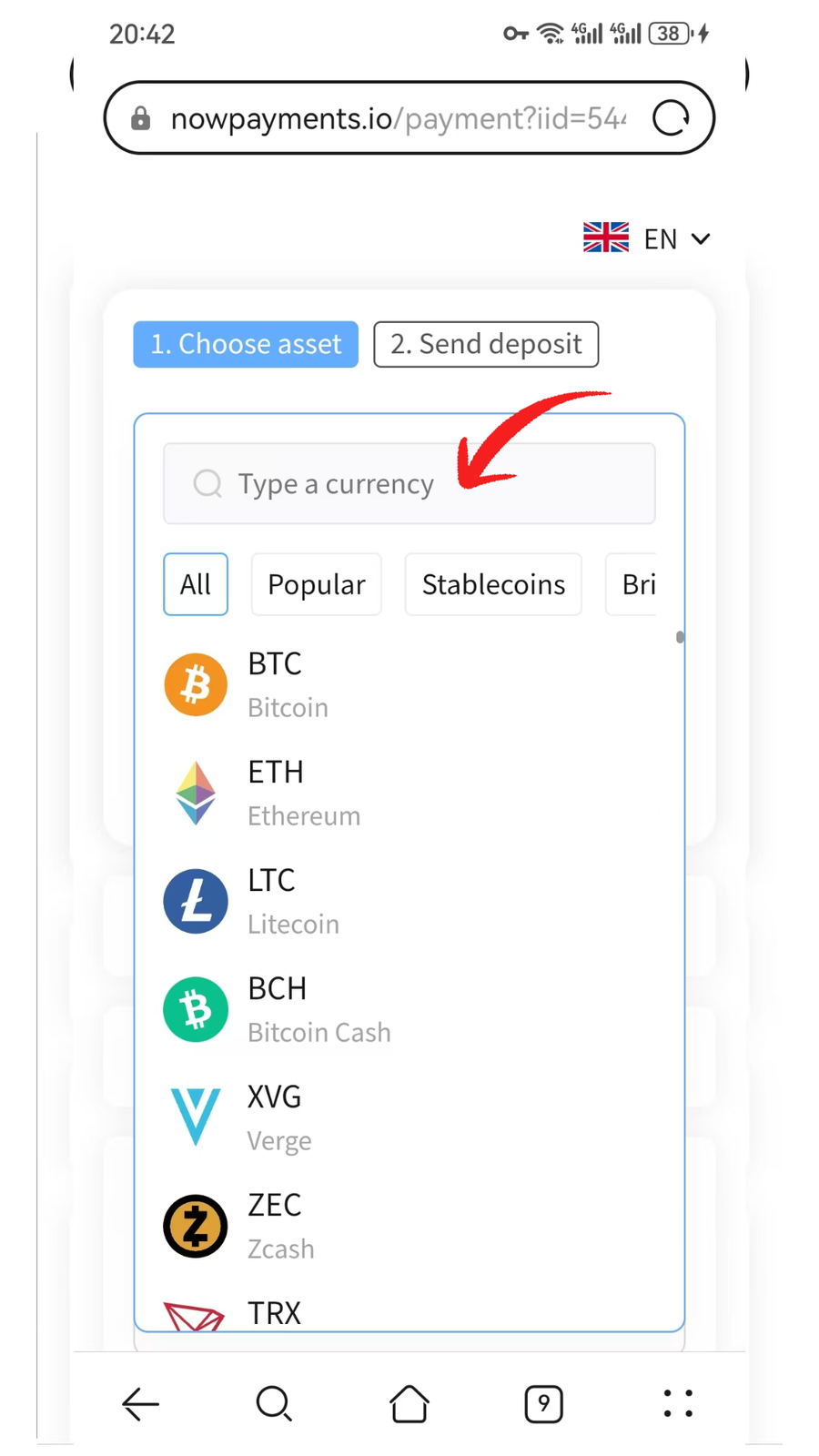
Choose another asset
Tap the asset row to open the picker. Use Type a currency
or the All / Popular / Stablecoins tabs, select the token, then continue
to Send deposit.
Step 5 of 12 · Cryptocurrency
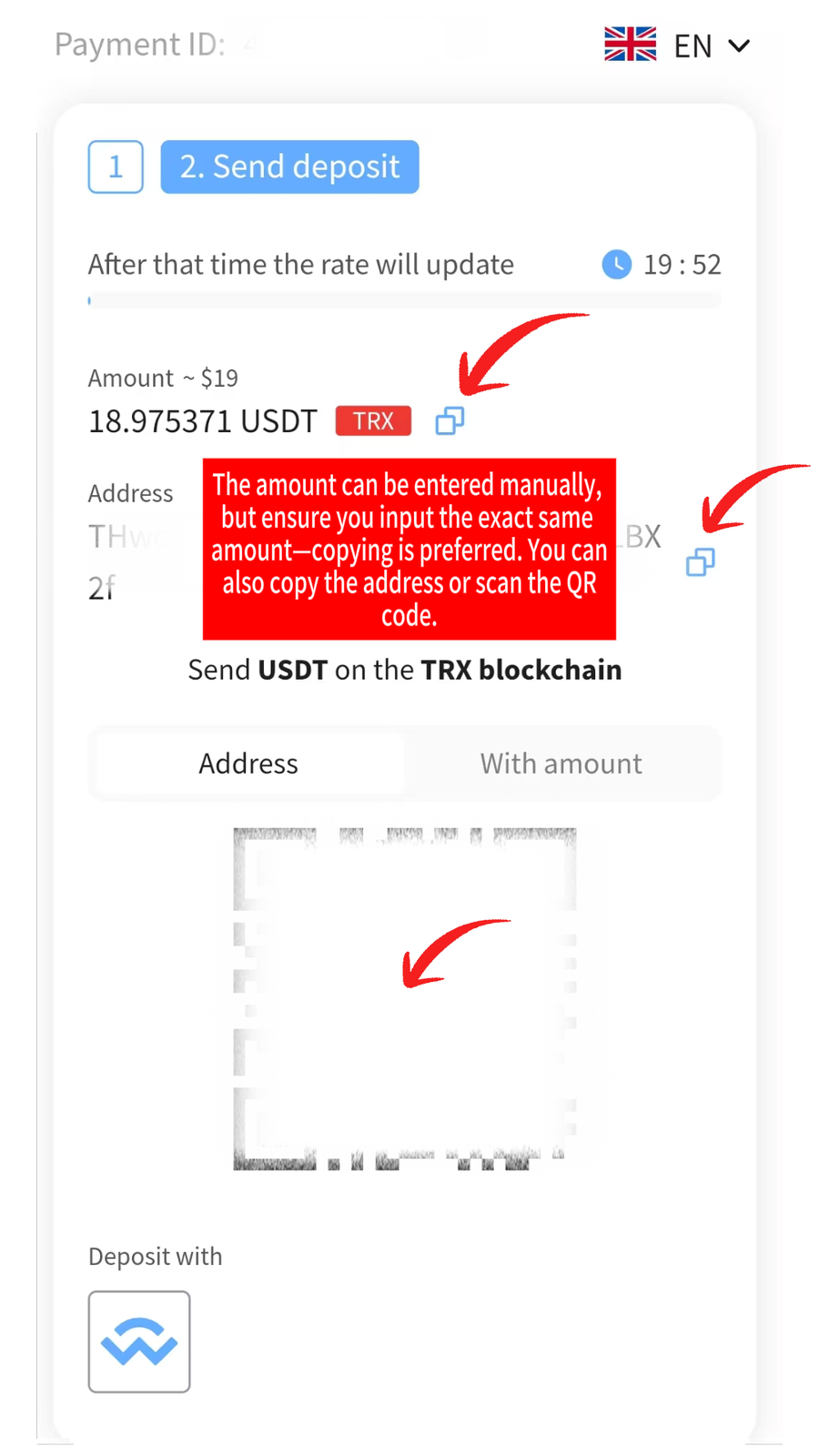
Send the exact deposit
Copy the amount and the address, or scan the
QR code. Send USDT on the TRX blockchain
(or the asset/network shown). Prefer paste over typing.
The amount can be entered manually, but it must match the quoted figure
exactly — copy is preferred. If the quote timer expires, the amount can
change; copy the new figures before you send.
Card / local rails
Selar monthly subscription · Flutterwave checkout. Not prepaid crypto.
Step 6 of 12 · Card
Pay with card / PayPal
Back on Choose how to pay, tap
Card / PayPal · monthly. This is a
Selar subscription that renews until you cancel — unlike
prepaid crypto. Access still waits on payment confirmation, not redirect.
Trial cannot use this rail.
Step 7 of 12 · Card
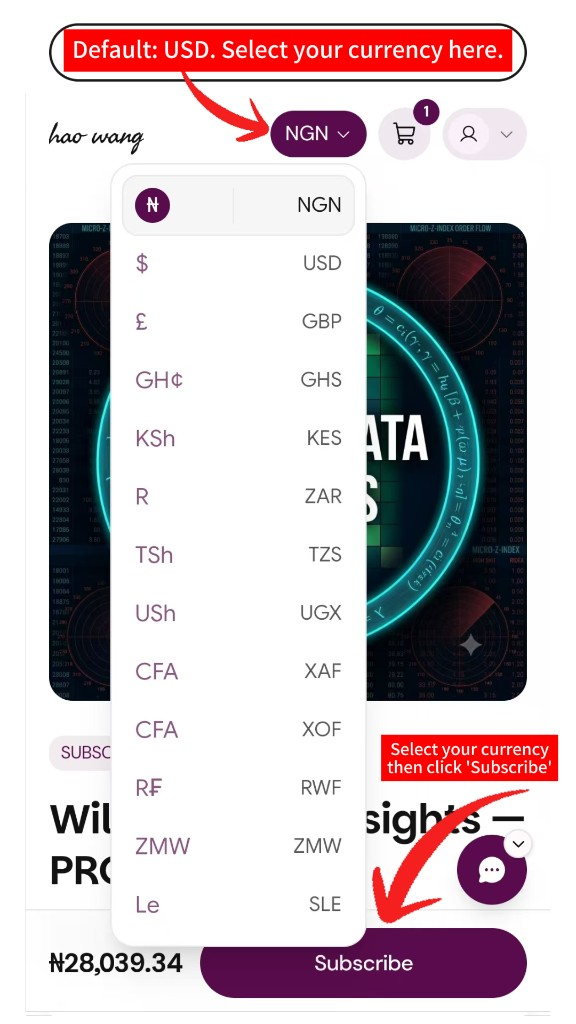
Select billing currency
Default is USD. Open the currency control and pick yours
(USD, GBP, NGN, GHS, and others Selar lists). The screenshot shows
NGN after a switch. List prices stay USD; the on-page total
is a local FX display. After you choose, tap Subscribe.
Step 8 of 12 · Card
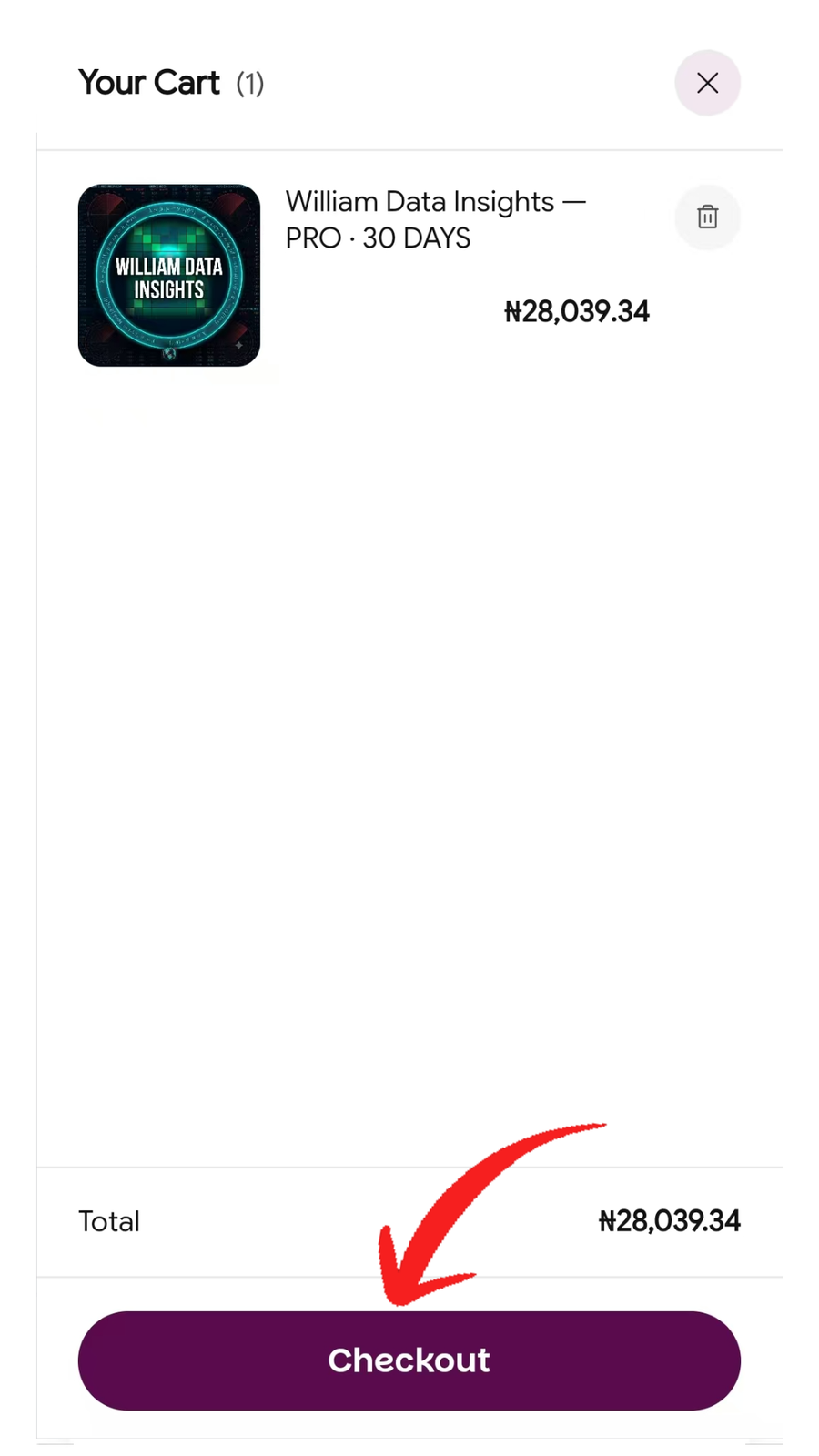
Confirm cart and Checkout
Review Your Cart and the Total, then tap
Checkout. A local-currency total (for example NGN) is the
FX equivalent of the USD list price, not a different plan.
Step 9 of 12 · Card
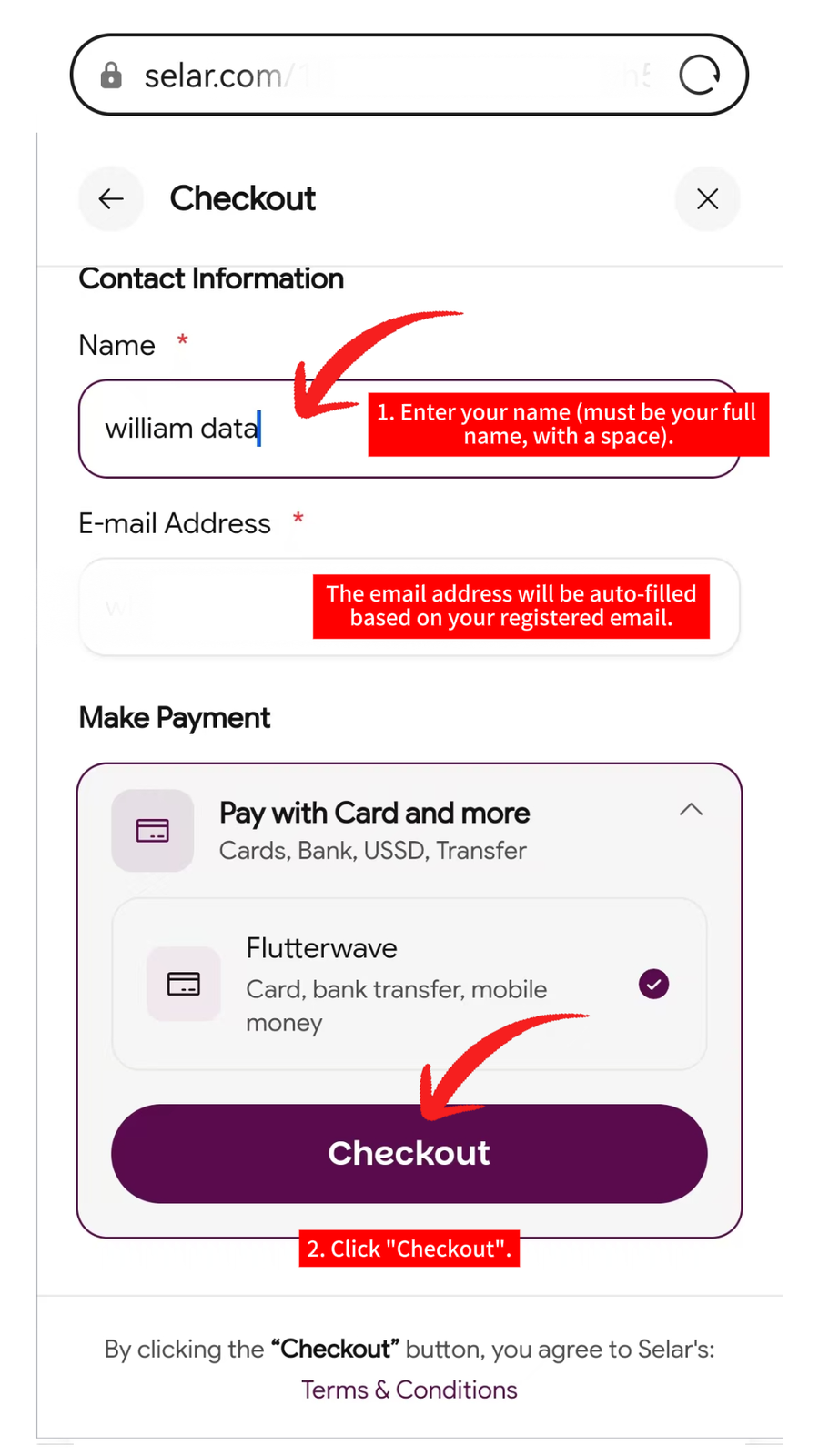
Enter contact details
Enter your full legal name (given name and family name,
with a space). Email is pre-filled from your WDI account.
Do not change the email. A different inbox can block fulfillment.
Keep the presented processor (Flutterwave) and tap Checkout.
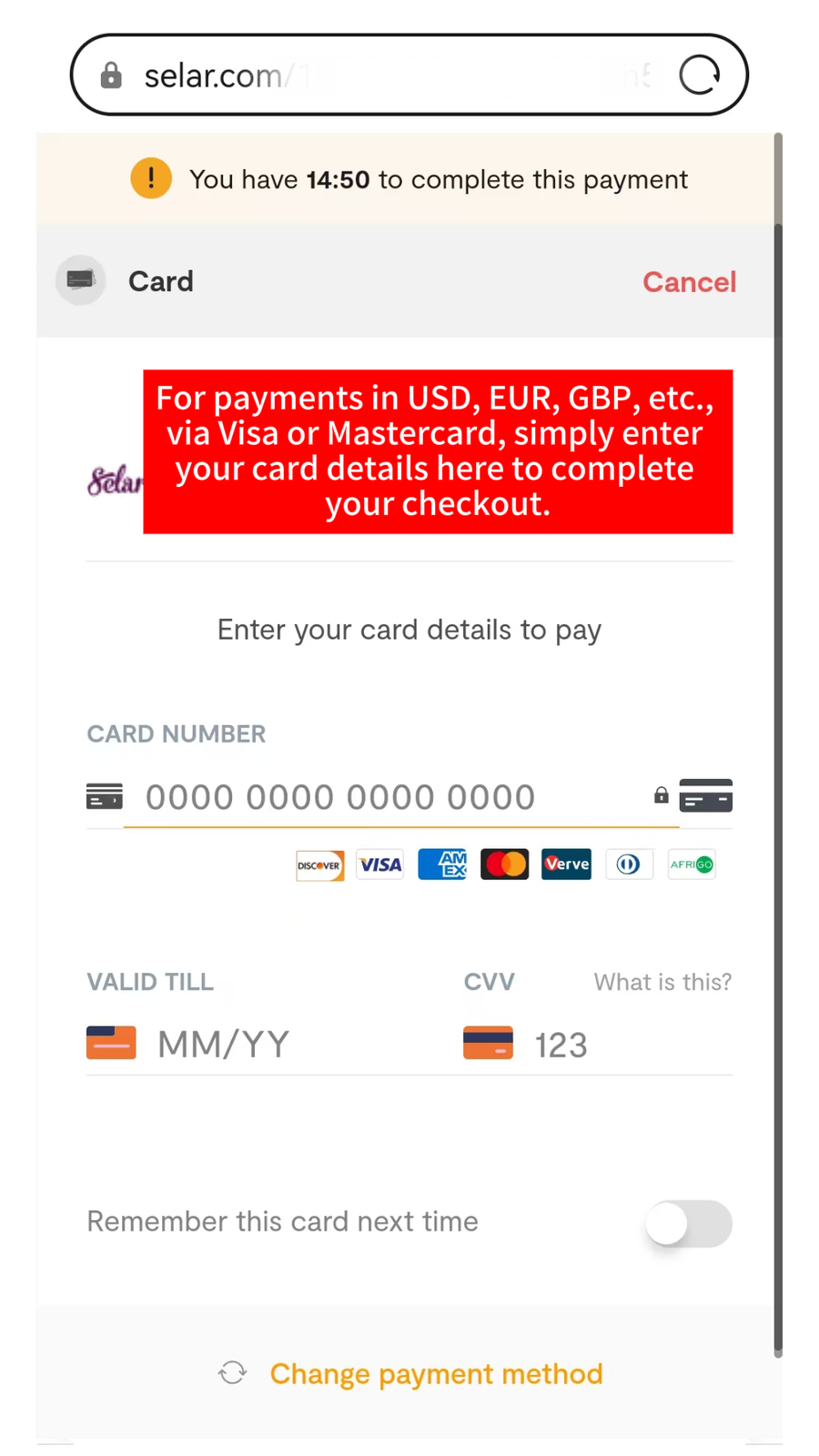
Step 10 of 12 · Card
Pay with an international card
For USD, EUR, GBP, and similar currencies, enter card number, expiry, and
CVV on this screen and complete payment before the session timer expires.
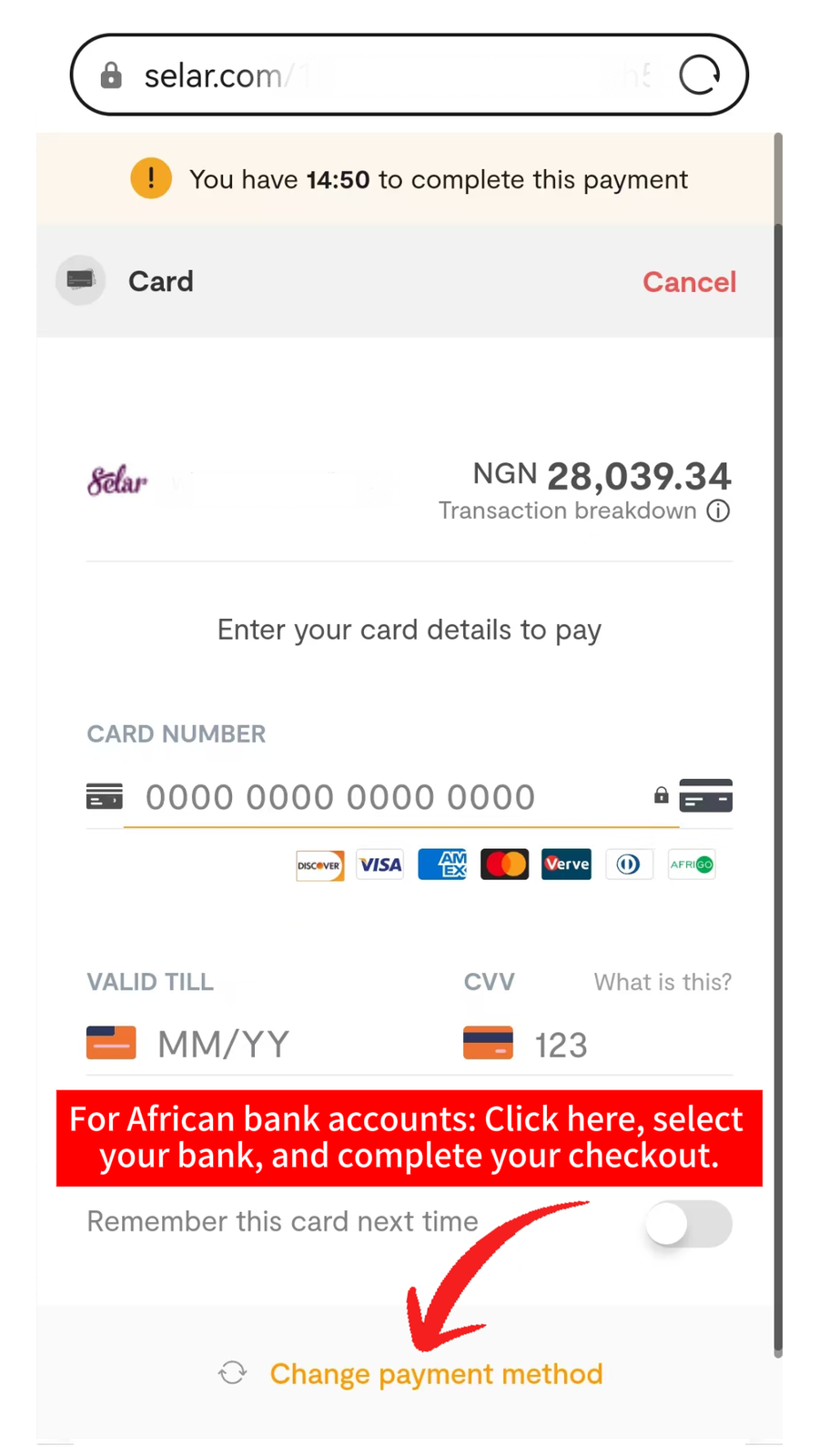
Step 11 of 12 · Card
Change payment method (Africa)
If you need a local African rail instead of an international card, tap
Change payment method at the bottom. Do not submit the
card form.
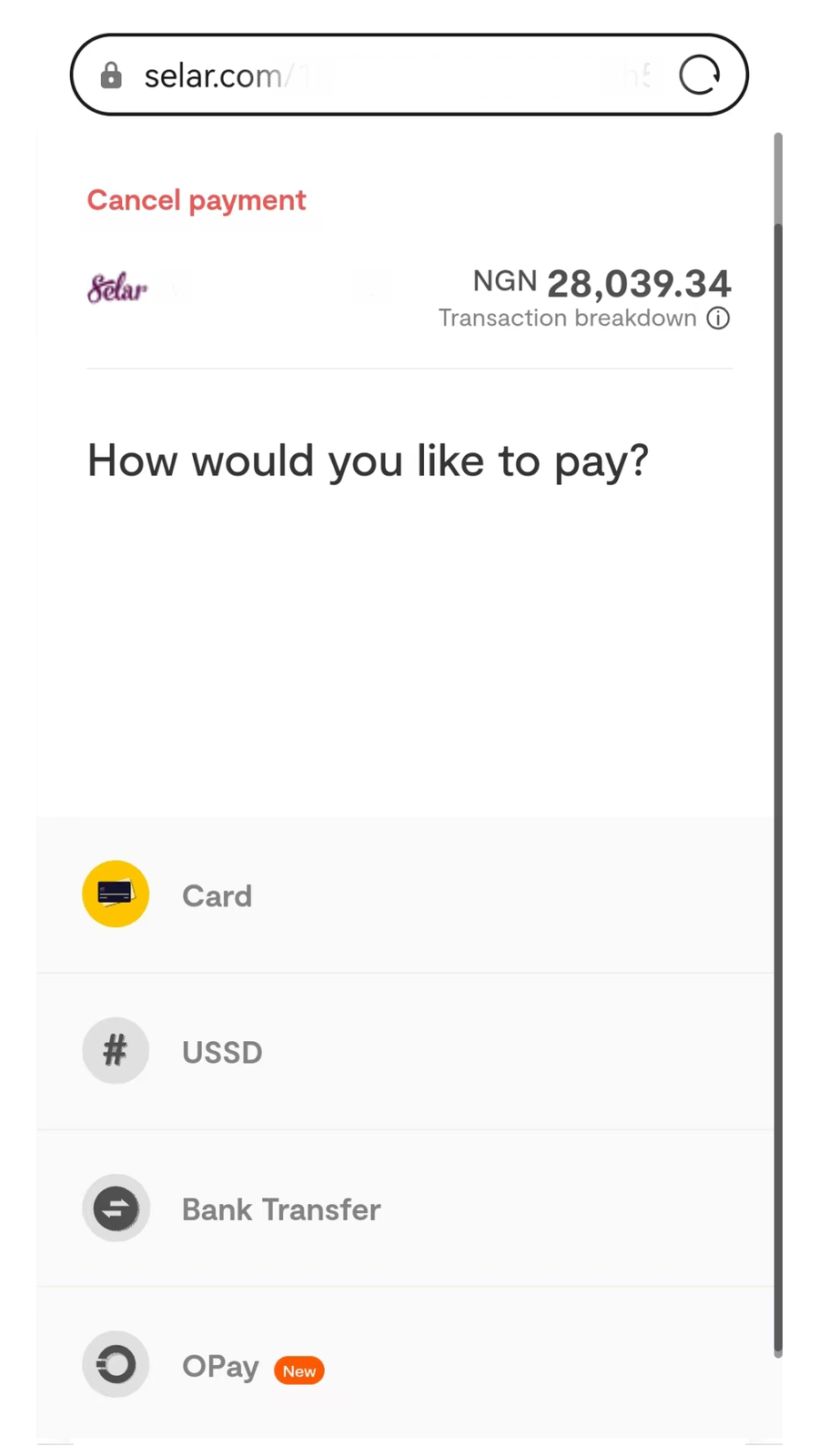
Step 12 of 12 · Card
Finish with your local rail
On How would you like to pay?, choose Card,
USSD, Bank Transfer, OPay,
or another listed option, then complete the processor flow. WDI unlocks
after confirmation — not on redirect.
Partner commission records only after WDI confirms payment — see
Partner program.